
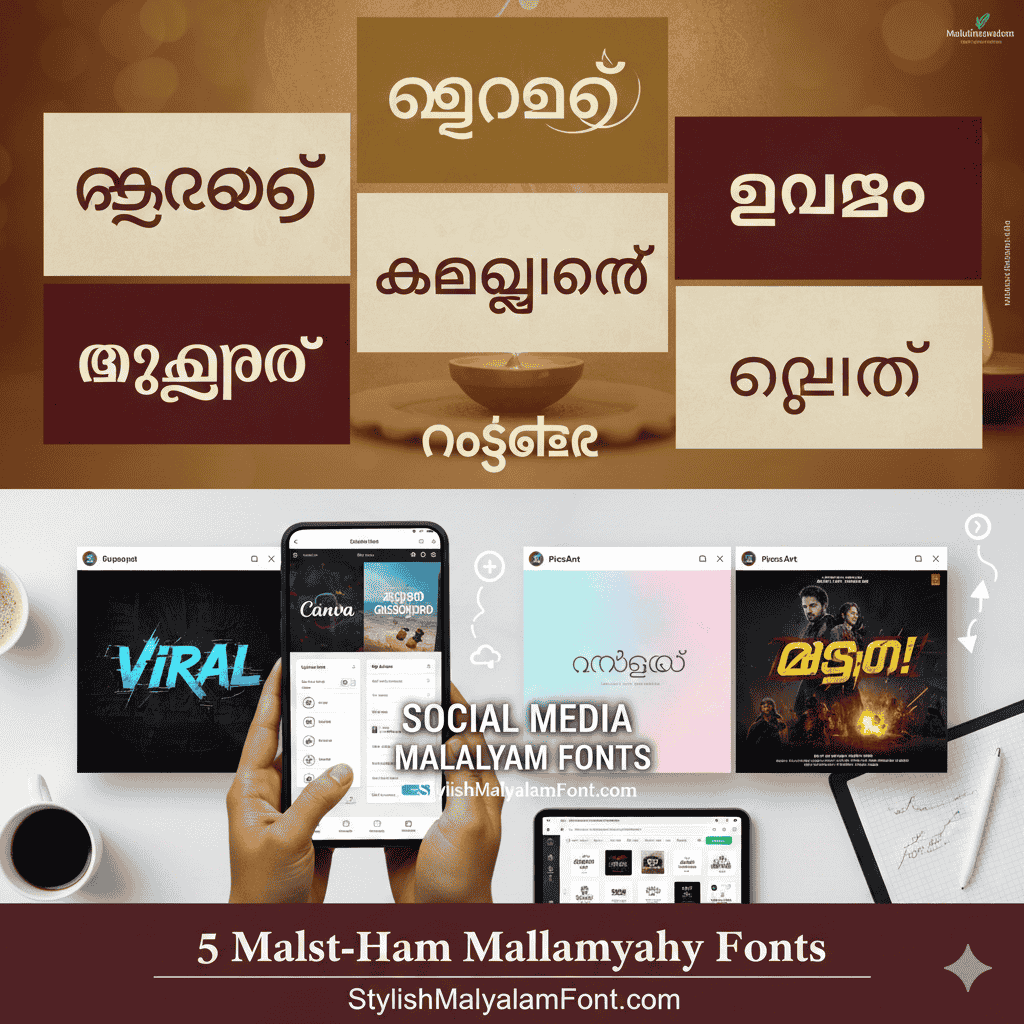
Namaskaram! 🙏 One of the most common questions we get is: “How do I actually use these fonts after downloading them?”
If you are using mobile apps like Canva, PicsArt, or PixelLab, you aren’t stuck with the default fonts. You can upload your own! Here is a simple, human-friendly guide to getting it done.
Step 1: Download & Unzip
Find the font you love on our site and hit download. Most fonts come in a .zip file to keep things fast. Use your phone’s file manager to “Extract” or “Unzip” the folder. You are looking for a file ending in .ttf or .otf.
Step 2: Upload to Your App
Depending on your app, the process is slightly different:
- In PicsArt: Go to Text -> Fonts -> My Fonts -> Add Fonts.
- In Canva (Pro): Go to Brand Kit -> Upload Font.
- In PixelLab: Go to the ‘A’ icon -> Fonts -> My Fonts -> Click the folder icon.
Pro Tip: If the text looks like broken boxes, make sure you are using a Unicode font for modern apps. We have a specific category for those!
Designing in our mother tongue should be fun and easy. If you run into any trouble, feel free to drop us a message through our contact page. Happy designing!